
How to Speed Up a Slow Android Phone
Why Is Your Android Phone Getting Slow?
A slow Android phone is usually not a sudden problem; it’s something that builds up over time. As you install more apps, save files, and keep using the same device daily, your phone’s resources slowly get overloaded. Background processes, outdated software, limited storage, and even simple things like too many notifications can reduce performance. Android devices are powerful, but they still have limits. Understanding why your phone is slowing down is the first step toward fixing it properly instead of just guessing and trying random solutions.
Common Reasons Behind Slow Android Performance
There isn’t just one reason why an Android phone becomes slow. Most of the time, it’s a combination of multiple issues working together. Low storage space makes it harder for the system to operate smoothly. Too many apps running in the background consume RAM and CPU power. Old Android versions may not be optimized for newer apps. On top of that, malware, heavy widgets, and auto-sync features quietly drain performance without you even noticing.
How to Check Your Android Phone’s Performance
Before fixing anything, it’s important to understand how your phone is performing right now. Android already gives you useful tools to do this. You can check storage usage, battery consumption, and app behavior directly from the settings menu. These insights help you identify what’s actually slowing your phone down instead of applying fixes blindly.
Check Storage, RAM, and Battery Usage
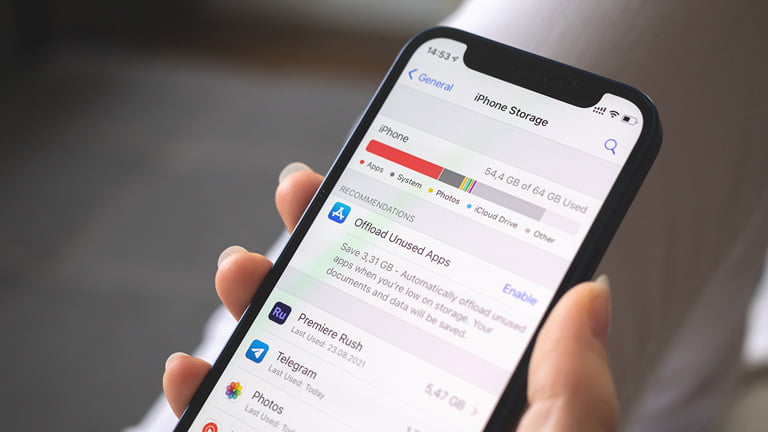
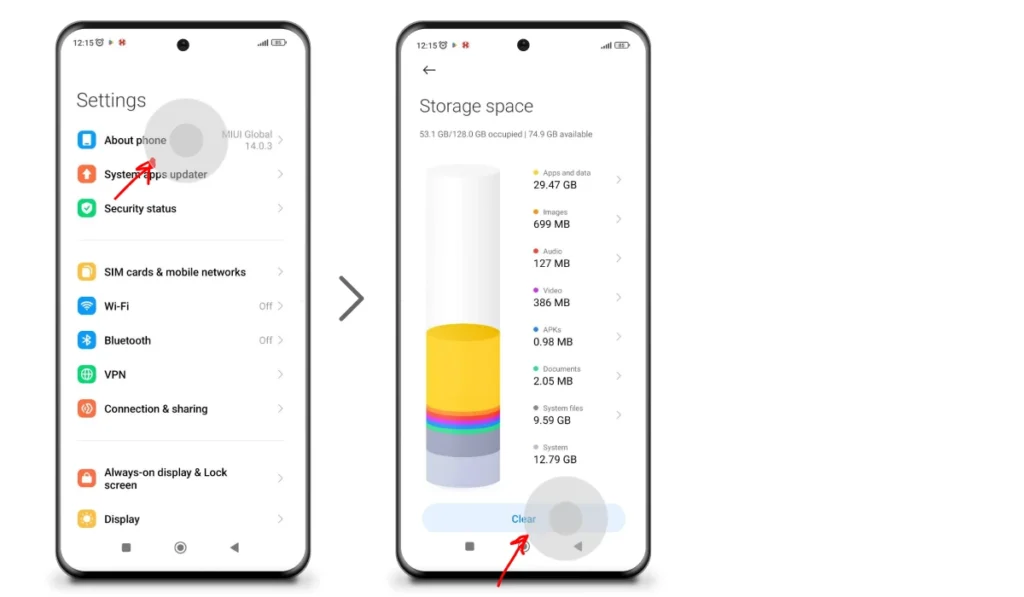
Go to Settings > Battery and Settings > Storage to see which apps are consuming the most power and space. Apps using excessive battery or storage are often responsible for lag. Monitoring RAM usage also helps you spot apps running unnecessarily in the background.
Restart Your Android Phone to Improve Speed

Restarting your phone might sound too simple, but it’s one of the most effective quick fixes. Over time, apps stay active in memory, background tasks pile up, and temporary system files accumulate. A restart clears RAM, stops unnecessary background processes, and refreshes the system. If you rarely restart your phone, performance issues are almost guaranteed to appear. Making a habit of restarting once or twice a week can noticeably improve speed and responsiveness.
You Might also Like Best Free AI Tools for Content Writing in 2026
Keep Your Android System Updated
Android updates are not just about new features; they also bring performance improvements, security patches, and bug fixes. Running an outdated Android version can make your phone slower and less compatible with modern apps. Manufacturers often optimize system performance through updates, so skipping them means missing out on free speed improvements. Always check for updates regularly to keep your device running efficiently.
How to Update Android Safely
Open Settings > Software Update and connect to a stable Wi-Fi network before updating. Make sure your battery is charged or plugged in to avoid interruptions during the update process.
Update Apps to Fix Performance Issues
Apps that are not updated can cause lag, crashes, and high resource usage. Developers frequently release updates to improve performance and fix bugs. If your apps are outdated, they may not be optimized for your current Android version, which directly impacts speed. Keeping apps updated ensures smoother performance and better compatibility with your system.
Free Up Internal Storage Space
Low storage space is one of the biggest reasons Android phones slow down. When storage is almost full, Android struggles to manage system files and app data efficiently. This leads to slow app launches, lag, and even freezing. Freeing up storage gives your phone breathing room and allows it to operate smoothly again. Removing unnecessary files is often more effective than installing speed-boosting apps.
Best Ways to Free Up Storage Quickly
Delete unused apps, clear large media files, and move photos or videos to cloud storage. You can also remove old downloads and cached files that are no longer needed.
Clear Cache and Junk Files Regularly
Cache files are meant to make apps load faster, but over time they can grow too large and cause the opposite effect. Junk files take up valuable space and slow down system operations. Clearing cache regularly helps maintain performance without affecting your personal data. This simple maintenance step can significantly improve speed, especially on older Android devices.
Uninstall Unused or Heavy Apps
Over time, most Android users install apps they rarely use. These unused or heavy apps quietly consume storage, run background processes, and slow down overall performance. Some apps also auto-start with your phone, even if you don’t open them manually. Removing apps you no longer need instantly frees up storage and RAM, making your phone feel lighter and faster. If an app hasn’t been used in months, it’s probably not worth keeping on your device.
Disable Bloatware and Pre-Installed Apps
Many Android phones come with pre-installed apps, also known as bloatware. These apps often cannot be uninstalled easily, but they still use system resources. Even if you never open them, they may run background services or send notifications. Disabling unnecessary bloatware stops them from consuming RAM, storage, and battery. This can noticeably improve performance, especially on mid-range or older Android devices.
How to Disable Pre-Installed Apps Safely
Go to Settings > Apps, select the app you don’t need, and tap Disable. This prevents the app from running or updating while keeping your system stable.
Reduce Background App Activity
Apps running in the background are one of the biggest performance killers on Android. Social media apps, messaging platforms, and location-based services constantly refresh data even when you’re not using them. This drains RAM and slows down other apps. Limiting background activity helps your phone focus on what you’re actively doing instead of wasting resources on hidden tasks.
How to Restrict Background Usage
Open Settings > Battery > App usage and restrict background activity for apps you don’t need running all the time. This improves speed and battery life together.
Limit Auto-Sync and Background Data Usage
Auto-sync is useful, but too many accounts syncing at once can slow down your phone. Email, cloud storage, contacts, and social apps constantly update in the background. This puts pressure on both performance and battery. Reducing auto-sync frequency helps your phone stay responsive without losing important updates.
You Might also Like ECMISS
Optimize Home Screen Widgets and Live Wallpapers
Widgets and live wallpapers look great, but they use system resources continuously. Weather widgets, news feeds, and animated wallpapers refresh in real time, consuming RAM and battery. A cluttered home screen with too many widgets can make your phone feel sluggish. Keeping your home screen simple improves performance and also makes your device easier to use.
Best Home Screen Optimization Tips
Remove unnecessary widgets, use static wallpapers, and limit the number of active home screen pages. Less visual load means better speed.
Reduce Animations and Visual Effects
Android animations make transitions look smooth, but they can also make your phone feel slower. Reducing or disabling animations doesn’t change actual performance, but it significantly improves perceived speed. Apps open faster, menus respond quicker, and the phone feels more snappy overall. This is one of the most effective tricks for older Android devices.
How to Turn Off Animations
Enable Developer Options, then reduce or turn off animation scales. This simple change can make an immediate difference in responsiveness.
Use Developer Options to Boost Performance
Developer Options offer advanced settings that allow you to fine-tune your Android device. While these options are hidden by default, they provide powerful ways to improve performance when used carefully. Adjusting animation scales, limiting background processes, and enabling performance-related settings can make your phone noticeably faster. You don’t need to be a developer just follow safe and recommended tweaks.
Switch to Lite or Lightweight App Versions
Many popular apps have Lite versions designed specifically for better performance on slower or older devices. These apps use less storage, consume less RAM, and run fewer background processes. Switching to Lite versions can significantly improve speed without sacrificing core functionality. Apps like Facebook Lite, Messenger Lite, and YouTube Lite load faster and put less pressure on your system. If performance matters more than extra features, lightweight apps are a smart and practical choice.
Scan Your Phone for Malware or Viruses
Malware can silently slow down your Android phone by running hidden processes, showing ads, or collecting data in the background. If your phone suddenly feels slow, overheats, or drains battery faster than usual, malware could be the reason. Running a trusted security scan helps identify and remove harmful apps that affect performance. Keeping your phone clean from threats is essential for both speed and security.
How to Protect Your Phone from Malware
Only install apps from trusted sources like the Google Play Store, avoid suspicious links, and use a reliable mobile security app to scan your device regularly.
Use Safe Mode to Identify Problematic Apps
Safe Mode is a powerful diagnostic tool that helps you identify whether third-party apps are causing performance issues. When you boot your phone in Safe Mode, only system apps are allowed to run. If your phone feels fast in Safe Mode, it means one or more installed apps are slowing it down. This method saves time and helps you pinpoint the real problem instead of guessing.
How to Use Safe Mode Effectively
Restart your phone and enter Safe Mode from the power menu. Then remove recently installed or suspicious apps one by one until performance improves.
How and When to Perform a Safe Factory Reset
A factory reset is the most effective way to fix extreme performance issues, but it should be used as a last resort. This process removes all apps, files, and settings, returning your phone to its original state. If your phone remains slow despite trying all other solutions, a factory reset can give it a fresh start. Just make sure to back up important data before proceeding.
Important Things to Do Before Resetting
Back up contacts, photos, and files to cloud storage or an external device. Sign out of important accounts to avoid setup issues after reset.
Tips to Keep Your Android Phone Fast Long-Term
Speed optimization isn’t a one-time task it’s an ongoing habit. Regular maintenance keeps your Android phone running smoothly for years. Avoid installing unnecessary apps, keep your system updated, clear storage regularly, and restart your phone occasionally. Simple habits like managing widgets and limiting background activity prevent performance issues before they start. A well-maintained phone always feels faster and more reliable.
Final Thoughts: Make Your Android Phone Fast Again
A slow Android phone doesn’t always mean it’s time for an upgrade. In most cases, performance issues are caused by storage overload, background apps, outdated software, or poor maintenance habits. By following the right steps and making small adjustments, you can restore speed and responsiveness easily. Treat your phone like a system that needs regular care, and it will continue to perform smoothly and efficiently.
Read More Informative Information At Mypasokey